Seller Net Sheet
How to Create a Seller Net Sheet
Quick Answer
Two inputs are required: the property address and the sale price. Everything else either fills itself in or is optional.
Start with the property address
The form opens with a single field: Search property address. Begin typing and pick the match from the list.
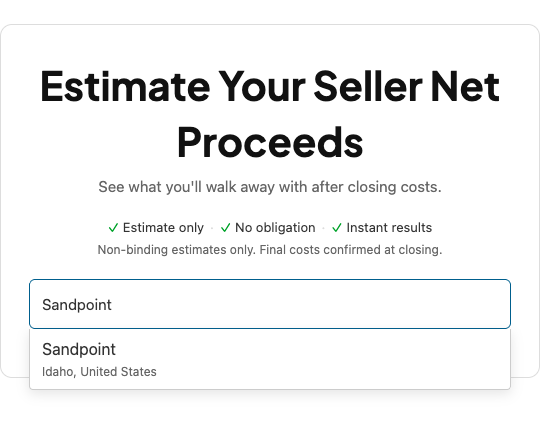
This sets the jurisdiction, which selects the rate and fee schedule used for every calculated line. Once you choose a match, the field is replaced by a confirmation bar showing what it resolved to, for example Sandpoint, ID, Bonner County, Idaho, with a Change link.
The rest of the form only appears after this step. If you are not seeing sale price or commission fields, the address has not been selected yet.
Enter the sale price
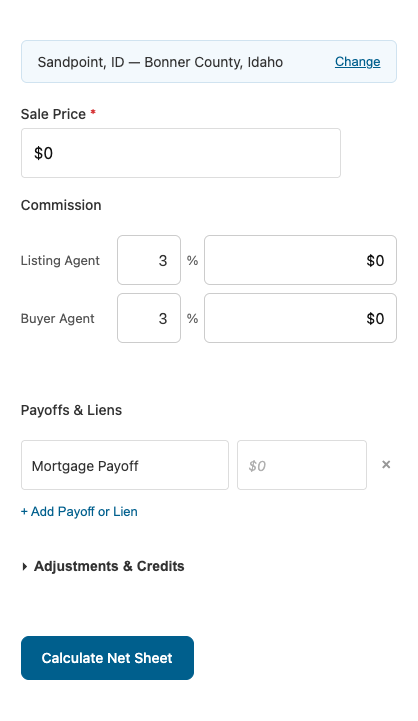
Sale Price is the only required field on the form. It is marked with a red asterisk.
Type the number without formatting. 500000 is fine, and the field reformats it to $500,000.00 once you move to the next field.
Check the commission percentages
Commission has two rows, Listing Agent and Buyer Agent, each with a percentage box and a dollar box side by side.
Both start at your agency’s configured default. The two boxes stay in step: change the percentage and the dollar figure follows, type a dollar figure and the percentage recalculates. Entering 12500 against a $500,000 sale price turns the percentage into 2.50, so you can work from whichever number you were given.
Underneath, a running summary shows the split and the combined figure:
Listing: $15,000.00 · Buyer: $15,000.00 · Total: $30,000.00
When you’d change this: the listing agreement is not at the default rate, or one side is a flat fee.
Add payoffs and liens
Payoffs & Liens starts with one empty row labelled Mortgage Payoff. Enter the payoff amount beside it.
The label is editable, so rewrite it to match what the row actually is: a second mortgage, a HELOC, a solar lien, an HOA lien. Select + Add Payoff or Lien for another row, and the × at the end of a row removes it.
Leave the amount blank if there is no payoff. An empty row is ignored.
Optional: adjustments, credits, and prorations
Two sections are collapsed by default because most sheets do not need them.
Adjustments & Credits covers four figures the seller is paying or crediting:
- Seller Concessions
- Repair Credits
- Home Warranty
- HOA Transfer Fee
Prorations starts with a Closing Date, then lets you add Property Tax, HOA, or Per-Diem items. Set the date first; the proration assists calculate from it.
Calculate
Select Calculate Net Sheet.
The form is replaced by the finished sheet: estimated net proceeds, then the sections that apply, then the total. Title, escrow, and recording charges come from the jurisdiction. You never enter those by hand.
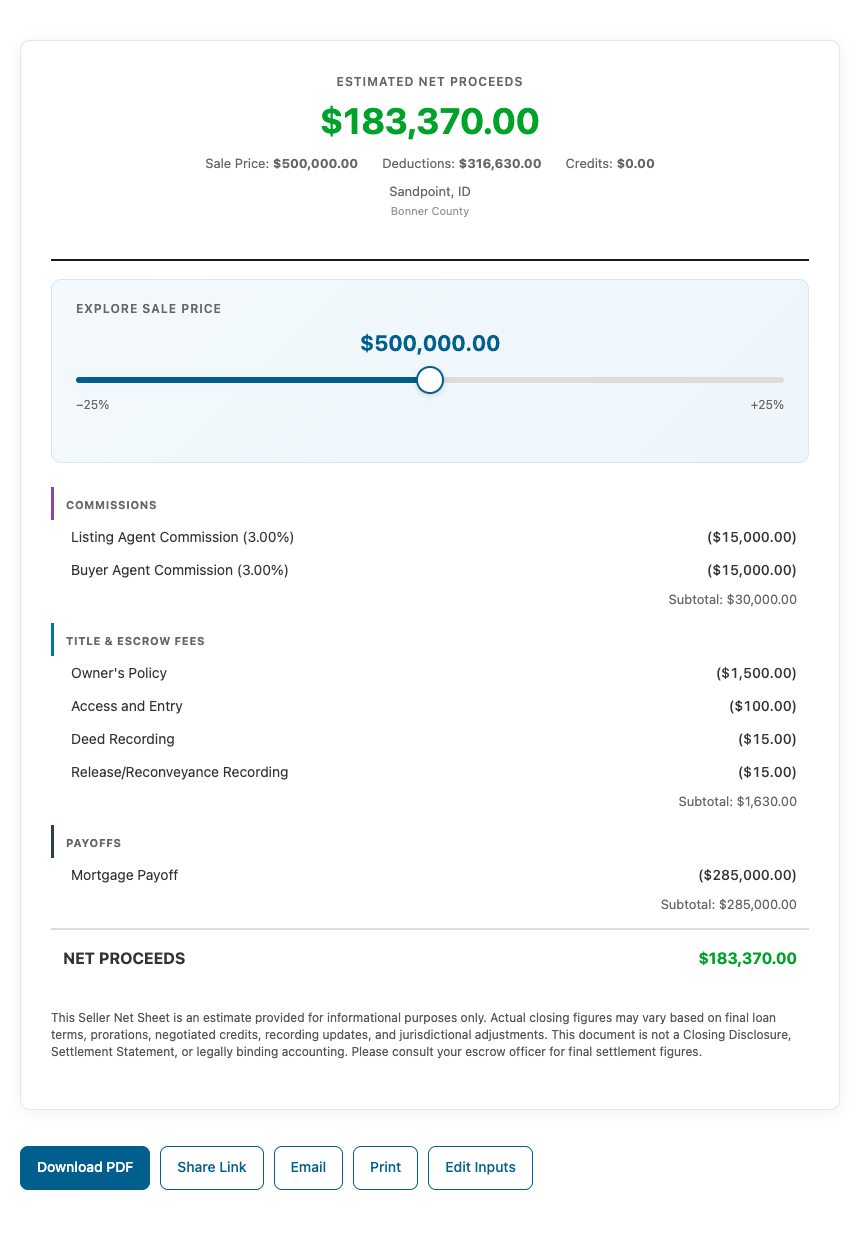
For what each section means, see How to read a seller net sheet.
Change something and recalculate
Edit Inputs, below the finished sheet, returns you to the form with everything still filled in. Adjust what you need and select Calculate Net Sheet again.
To try a different sale price without going back, use the Explore Sale Price slider at the top of the result instead. It previews proceeds across a range of roughly 25% either side of the price you entered.